> ## Documentation Index
> Fetch the complete documentation index at: https://docs.gameboost.com/llms.txt
> Use this file to discover all available pages before exploring further.
# Fix Order Issues
> How to contact a partnered seller, open a dispute, or submit a support ticket for order issues.
If you experience any issues with your order on GameBoost, follow these steps to get assistance quickly.
***
# Step by Step Guide:
Most issues can be resolved through the order chat. Since the seller handles the product or service, they are usually best placed to help.
To talk to the seller, go to [My Orders](https://gameboost.com/orders) and click the order in question: a chat box with the seller will be available on the order page.
If direct communication doesn't solve the problem, you can open a **dispute** directly from your order page by clicking the **Report Issue** button (located below the order chat with the seller).
Disputes bring our team into the conversation to help review the case and help work toward a resolution.
For full details on how the dispute process works, what to include, and what to expect, see our guide on [**how disputes work**](/documentation/for-customers/order-help/order-disputes-how-they-work).
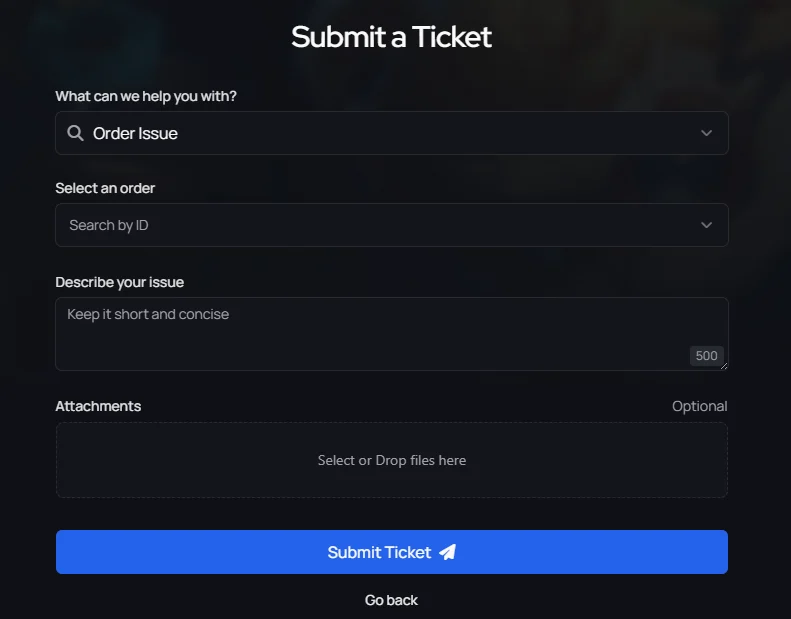
If your issue is unrelated to a specific order, or you need help with something the dispute system doesn't cover, you can open a **support ticket**:
* Go to the [**Ticket Support**](https://gameboost.com/help/tickets/create) section
* Select **"What can we help you with?"** and choose the relevant category
* If it's order-related, select the **order in question** to link the ticket
* Describe the problem in detail and attach any helpful screenshots
The support team will review the ticket and help with the next steps.
 ***
>
> Many problems can be prevented by following the proper steps after receiving your account. Check our guide on [**post-purchase account usage**](/documentation/for-customers/account-usage-terms/general-account-usage-terms) to learn how to secure your account, change credentials safely, and stay within warranty terms.
>
***
## Need help?
If you need help with submitting a dispute or ticket. Read more on related articles: [Order Disputes](/documentation/for-customers/order-help/order-disputes-how-they-work), [Account Credentials not Working](/documentation/for-customers/frequently-asked-questions/account-credentials-not-working-what-next), [Game Key Order Issues](/documentation/for-customers/order-help/game-key-order-issues), or [open a ticket](https://gameboost.com/help/tickets/create) with our Customer Support.
***
>
> Many problems can be prevented by following the proper steps after receiving your account. Check our guide on [**post-purchase account usage**](/documentation/for-customers/account-usage-terms/general-account-usage-terms) to learn how to secure your account, change credentials safely, and stay within warranty terms.
>
***
## Need help?
If you need help with submitting a dispute or ticket. Read more on related articles: [Order Disputes](/documentation/for-customers/order-help/order-disputes-how-they-work), [Account Credentials not Working](/documentation/for-customers/frequently-asked-questions/account-credentials-not-working-what-next), [Game Key Order Issues](/documentation/for-customers/order-help/game-key-order-issues), or [open a ticket](https://gameboost.com/help/tickets/create) with our Customer Support.