> ## Documentation Index
> Fetch the complete documentation index at: https://docs.gameboost.com/llms.txt
> Use this file to discover all available pages before exploring further.
# Authentication
> Learn how to authenticate your API requests using Bearer tokens
## Overview
The GameBoost API uses **Bearer Token authentication** to secure all API endpoints. You'll need to include your API key in the `Authorization` header of every request.
All API requests must be made over HTTPS. Requests made over plain HTTP will fail.
## Getting Your API Key
Your API key is available in the GameBoost Partner Dashboard. Follow these steps to retrieve it:
Navigate to [gameboost.com/dashboard](https://gameboost.com/login) and sign in with your partner account.
Not a partner yet? Go to [jobs.gameboost.com](https://jobs.gameboost.com) and apply as a seller.
From the dashboard, navigate to **Settings** → **Developers** in the left sidebar.
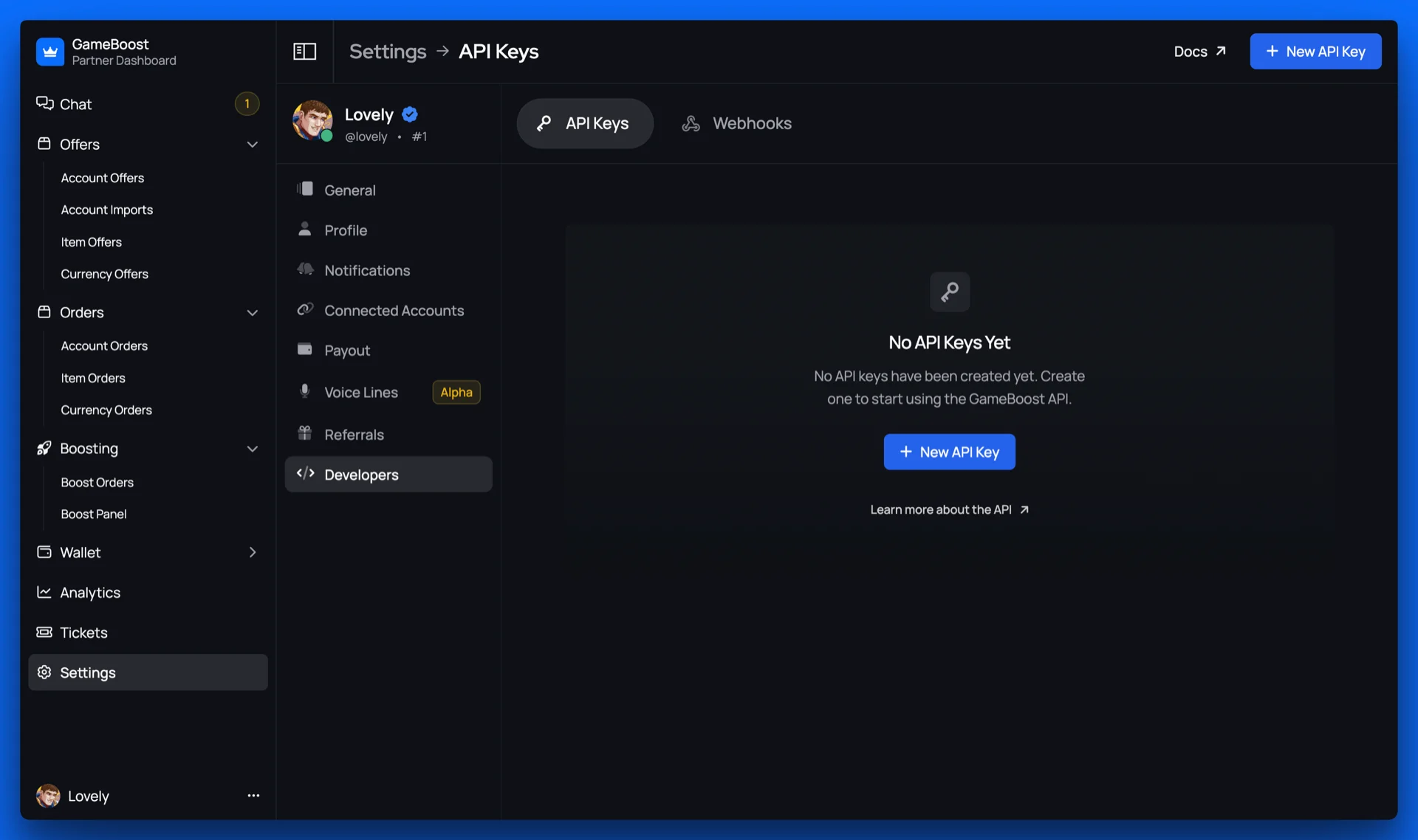 * If you haven't created an API key yet, click **New API Key**
* Give your API key a descriptive name to help you identify it later.
* By default, all API keys have **full access** to your account.
* If you haven't created an API key yet, click **New API Key**
* Give your API key a descriptive name to help you identify it later.
* By default, all API keys have **full access** to your account.
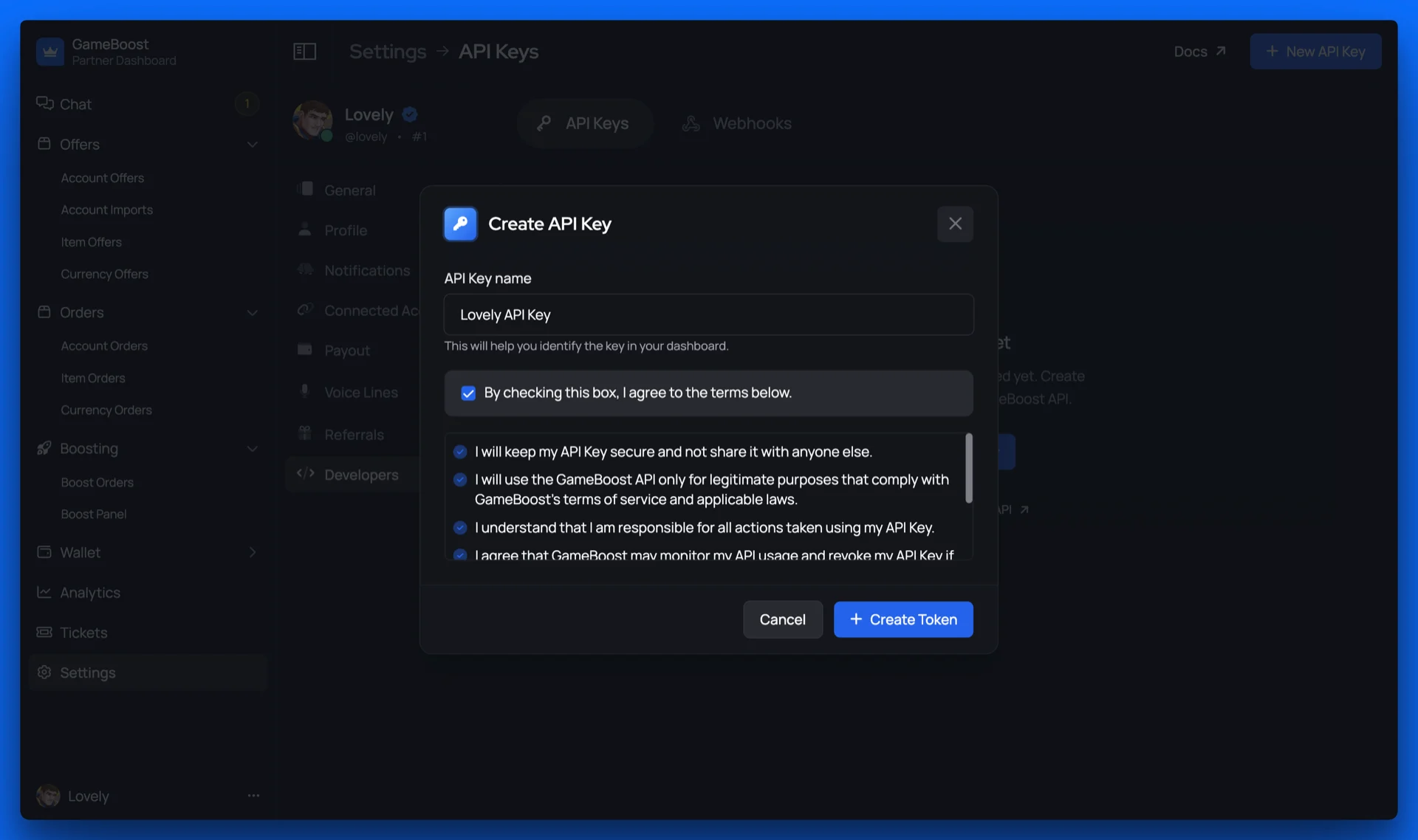 Your API key will only be shown in full once during generation. Make sure to copy and store it securely.
Copy your API key and store it in a secure location such as:
* Environment variables in your application
* A secure secrets manager (1Password, AWS Secrets Manager, etc.)
* Encrypted configuration files
Your API key is ready to use! You can now make authenticated requests to the GameBoost API.
## Making Authenticated Requests
Include your API key in the `Authorization` header using the Bearer token scheme:
```bash cURL theme={null}
curl -X GET 'https://api.gameboost.com/v2/orders' \
-H 'Authorization: Bearer YOUR_API_KEY' \
-H 'Content-Type: application/json'
```
```javascript Node.js theme={null}
const fetch = require('node-fetch');
const apiKey = process.env.GAMEBOOST_API_KEY;
const response = await fetch('https://api.gameboost.com/v2/orders', {
method: 'GET',
headers: {
'Authorization': `Bearer ${apiKey}`,
'Content-Type': 'application/json'
}
});
const data = await response.json();
console.log(data);
```
```python Python theme={null}
import requests
import os
api_key = os.getenv('GAMEBOOST_API_KEY')
headers = {
'Authorization': f'Bearer {api_key}',
'Content-Type': 'application/json'
}
response = requests.get(
'https://api.gameboost.com/v2/orders',
headers=headers
)
data = response.json()
print(data)
```
```php PHP theme={null}
```
```go Go theme={null}
package main
import (
"fmt"
"io"
"net/http"
"os"
)
func main() {
apiKey := os.Getenv("GAMEBOOST_API_KEY")
client := &http.Client{}
req, _ := http.NewRequest("GET", "https://api.gameboost.com/v2/orders", nil)
req.Header.Add("Authorization", "Bearer "+apiKey)
req.Header.Add("Content-Type", "application/json")
resp, err := client.Do(req)
if err != nil {
panic(err)
}
defer resp.Body.Close()
body, _ := io.ReadAll(resp.Body)
fmt.Println(string(body))
}
```
Store your API key in environment variables rather than hardcoding it in your source code. This improves security and makes it easier to manage keys across different environments.
## Managing Your API Keys
### Rotating API Keys
For security best practices, we recommend rotating your API keys periodically:
In the Partner Dashboard, click **New API Key** to create a second API key.
Gradually update your applications and services to use the new API key.
Once all services are using the new key, revoke the old key from the dashboard.
You can have up to 2 active API keys at once to facilitate smooth key rotation without downtime.
### Revoking API Keys
If your API key is compromised or no longer needed, revoke it immediately:
Go to **Settings** → **Developers** in the Partner Dashboard.
Find the API key you want to revoke in the list of active keys.
Click the **Delete** (trash icon) button next to the key and confirm the action.
Your API key will only be shown in full once during generation. Make sure to copy and store it securely.
Copy your API key and store it in a secure location such as:
* Environment variables in your application
* A secure secrets manager (1Password, AWS Secrets Manager, etc.)
* Encrypted configuration files
Your API key is ready to use! You can now make authenticated requests to the GameBoost API.
## Making Authenticated Requests
Include your API key in the `Authorization` header using the Bearer token scheme:
```bash cURL theme={null}
curl -X GET 'https://api.gameboost.com/v2/orders' \
-H 'Authorization: Bearer YOUR_API_KEY' \
-H 'Content-Type: application/json'
```
```javascript Node.js theme={null}
const fetch = require('node-fetch');
const apiKey = process.env.GAMEBOOST_API_KEY;
const response = await fetch('https://api.gameboost.com/v2/orders', {
method: 'GET',
headers: {
'Authorization': `Bearer ${apiKey}`,
'Content-Type': 'application/json'
}
});
const data = await response.json();
console.log(data);
```
```python Python theme={null}
import requests
import os
api_key = os.getenv('GAMEBOOST_API_KEY')
headers = {
'Authorization': f'Bearer {api_key}',
'Content-Type': 'application/json'
}
response = requests.get(
'https://api.gameboost.com/v2/orders',
headers=headers
)
data = response.json()
print(data)
```
```php PHP theme={null}
```
```go Go theme={null}
package main
import (
"fmt"
"io"
"net/http"
"os"
)
func main() {
apiKey := os.Getenv("GAMEBOOST_API_KEY")
client := &http.Client{}
req, _ := http.NewRequest("GET", "https://api.gameboost.com/v2/orders", nil)
req.Header.Add("Authorization", "Bearer "+apiKey)
req.Header.Add("Content-Type", "application/json")
resp, err := client.Do(req)
if err != nil {
panic(err)
}
defer resp.Body.Close()
body, _ := io.ReadAll(resp.Body)
fmt.Println(string(body))
}
```
Store your API key in environment variables rather than hardcoding it in your source code. This improves security and makes it easier to manage keys across different environments.
## Managing Your API Keys
### Rotating API Keys
For security best practices, we recommend rotating your API keys periodically:
In the Partner Dashboard, click **New API Key** to create a second API key.
Gradually update your applications and services to use the new API key.
Once all services are using the new key, revoke the old key from the dashboard.
You can have up to 2 active API keys at once to facilitate smooth key rotation without downtime.
### Revoking API Keys
If your API key is compromised or no longer needed, revoke it immediately:
Go to **Settings** → **Developers** in the Partner Dashboard.
Find the API key you want to revoke in the list of active keys.
Click the **Delete** (trash icon) button next to the key and confirm the action.
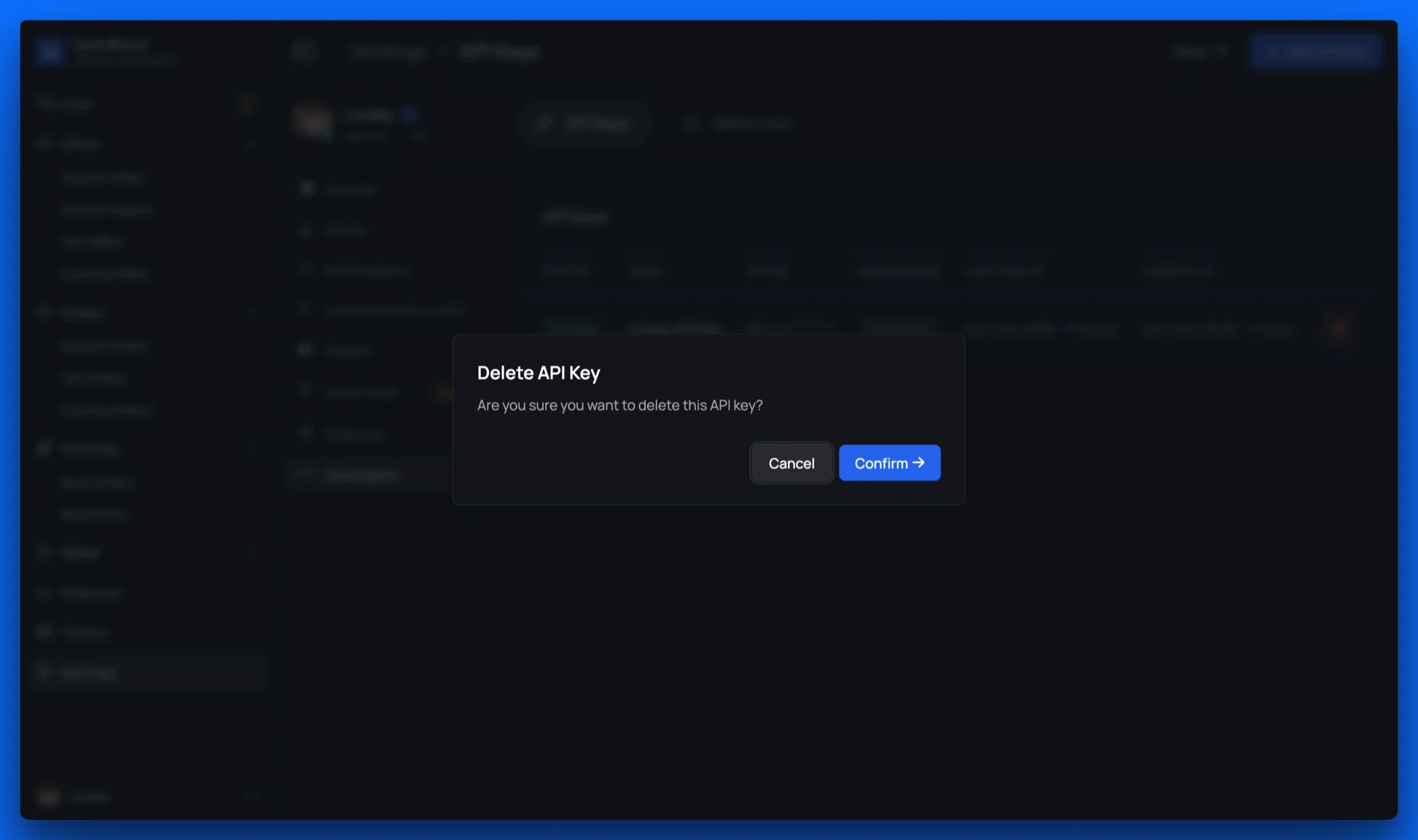 Revoking an API key is immediate and cannot be undone. All requests using the revoked key will fail immediately.
If needed, generate a new API key to replace the revoked one.
The old key has been revoked and can no longer be used to access the API.
## Security Best Practices
* Never commit API keys to version control
* Use environment variables or secure secrets management services
* Encrypt configuration files that contain API keys
* Restrict access to API keys on a need-to-know basis
* Always make API requests over HTTPS
* Never send API keys over unencrypted connections
* Validate SSL certificates in your API client
* Rotate API keys every 90 days as a best practice
* Immediately rotate keys if you suspect compromise
* Use the dual-key system to enable zero-downtime rotation
* Never share API keys between team members or applications
* Be wary of phishing attempts asking for your API key
* Never enter your API key on suspicious websites or third-party tools
* Report any suspicious activity or unauthorized access immediately
## Next Steps
Now that you've set up authentication, you're ready to start making API requests:
Learn about response formats and error handling
Understand rate limits and best practices
Explore available endpoints and start building
Set up real-time event notifications
Revoking an API key is immediate and cannot be undone. All requests using the revoked key will fail immediately.
If needed, generate a new API key to replace the revoked one.
The old key has been revoked and can no longer be used to access the API.
## Security Best Practices
* Never commit API keys to version control
* Use environment variables or secure secrets management services
* Encrypt configuration files that contain API keys
* Restrict access to API keys on a need-to-know basis
* Always make API requests over HTTPS
* Never send API keys over unencrypted connections
* Validate SSL certificates in your API client
* Rotate API keys every 90 days as a best practice
* Immediately rotate keys if you suspect compromise
* Use the dual-key system to enable zero-downtime rotation
* Never share API keys between team members or applications
* Be wary of phishing attempts asking for your API key
* Never enter your API key on suspicious websites or third-party tools
* Report any suspicious activity or unauthorized access immediately
## Next Steps
Now that you've set up authentication, you're ready to start making API requests:
Learn about response formats and error handling
Understand rate limits and best practices
Explore available endpoints and start building
Set up real-time event notifications